Submit your connector
Submit your connector
You can submit your connector to the Zendesk Marketplace from the Marketplace developer portal. A submission has two parts: your source code, which is validated when you upload it, and marketing content, which is displayed on your Marketplace listing.
This page explains how to submit a new connector, update an existing one, and manage your submissions. To build and package the connector archive, see Building a Marketplace connector.
Submitting Marketplace connectors
Before submitting your connector, make sure you have registered your organization on the Marketplace developer portal at apps.zendesk.com, and you're signed in to the portal.
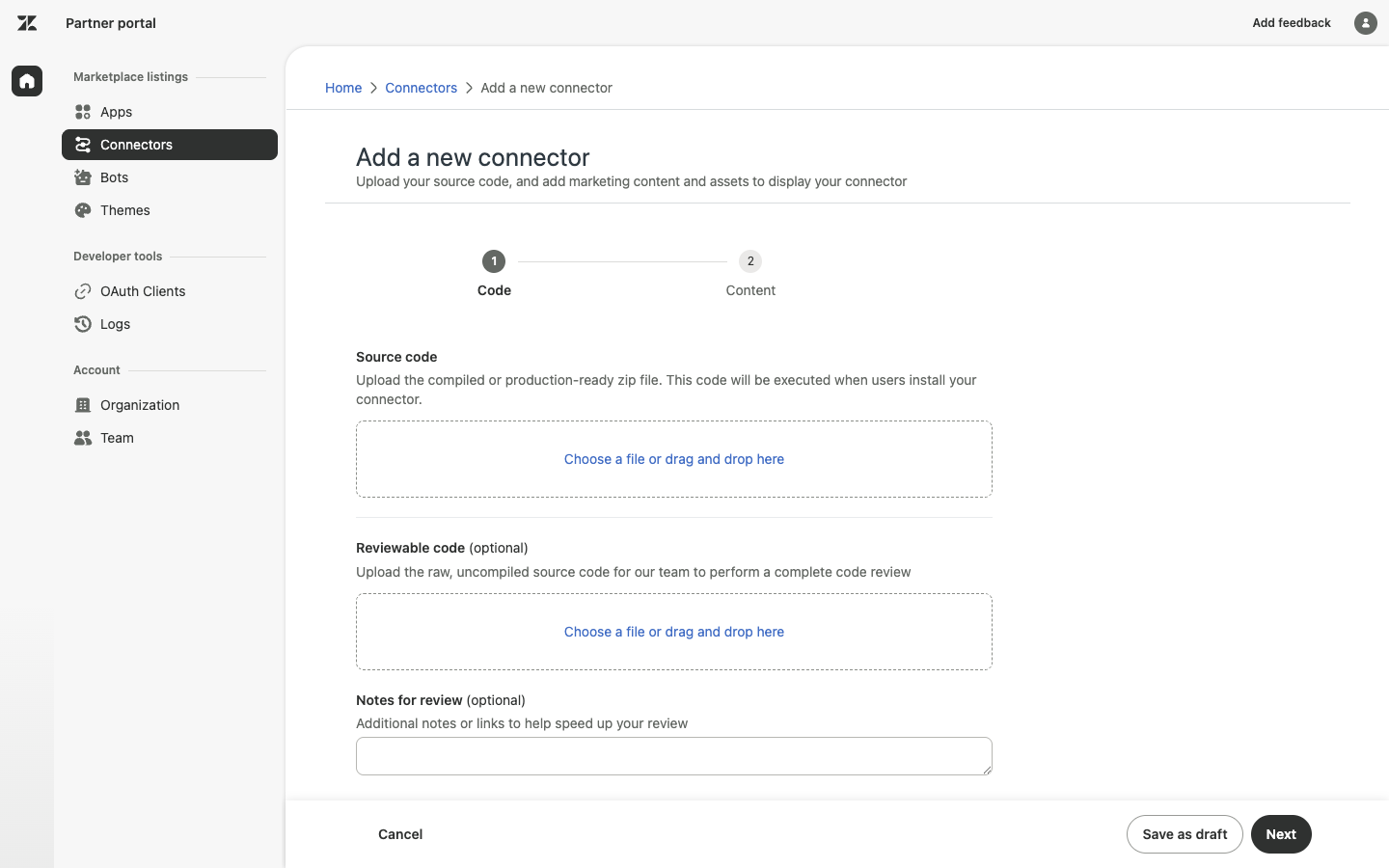
Click Add a new connector to open the submission form. The form has two steps: Code and Content.
Step 1: Code
-
Under Source code, upload the compiled or production-ready .zip file. This code will be executed when users install your connector.
-
Your package is validated after the upload. Any errors must be addressed before you can continue, and any warnings should be addressed before you submit.
The extracted connector name must meet the following requirements:
- It must contain no more than 40 characters, including spaces
- It can't contain the word "Zendesk"
- It must contain only Latin-alphabet characters
-
Optionally, under Reviewable code, upload the raw, uncompiled source code for our team to perform a complete code review.
-
Optionally, add Notes for review. Use this field to add any notes or links that can help speed up the review of your connector.
-
Click Next to continue to the Content step, or Save as draft to save your submission as a draft and finish it later.
Step 2: Content
The Content step has two sections.
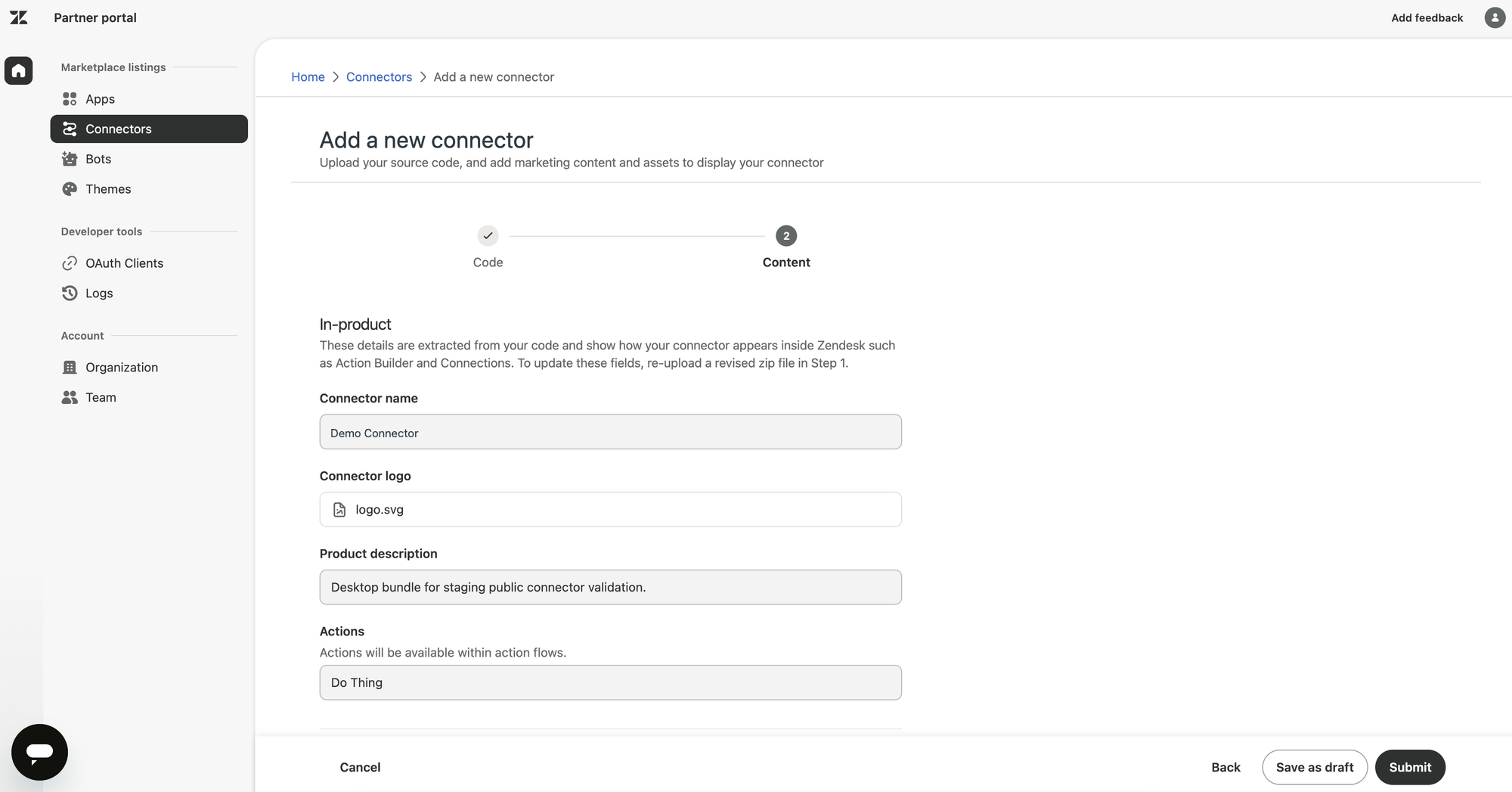
In-product details are extracted from your code and show how your connector appears inside Zendesk, such as in Action Builder and Connections' Connector library. These fields are read-only. To change them, upload a revised zip file in the Code step.
- Connector name
- Connector logo
- Product description
- Actions available within action flows
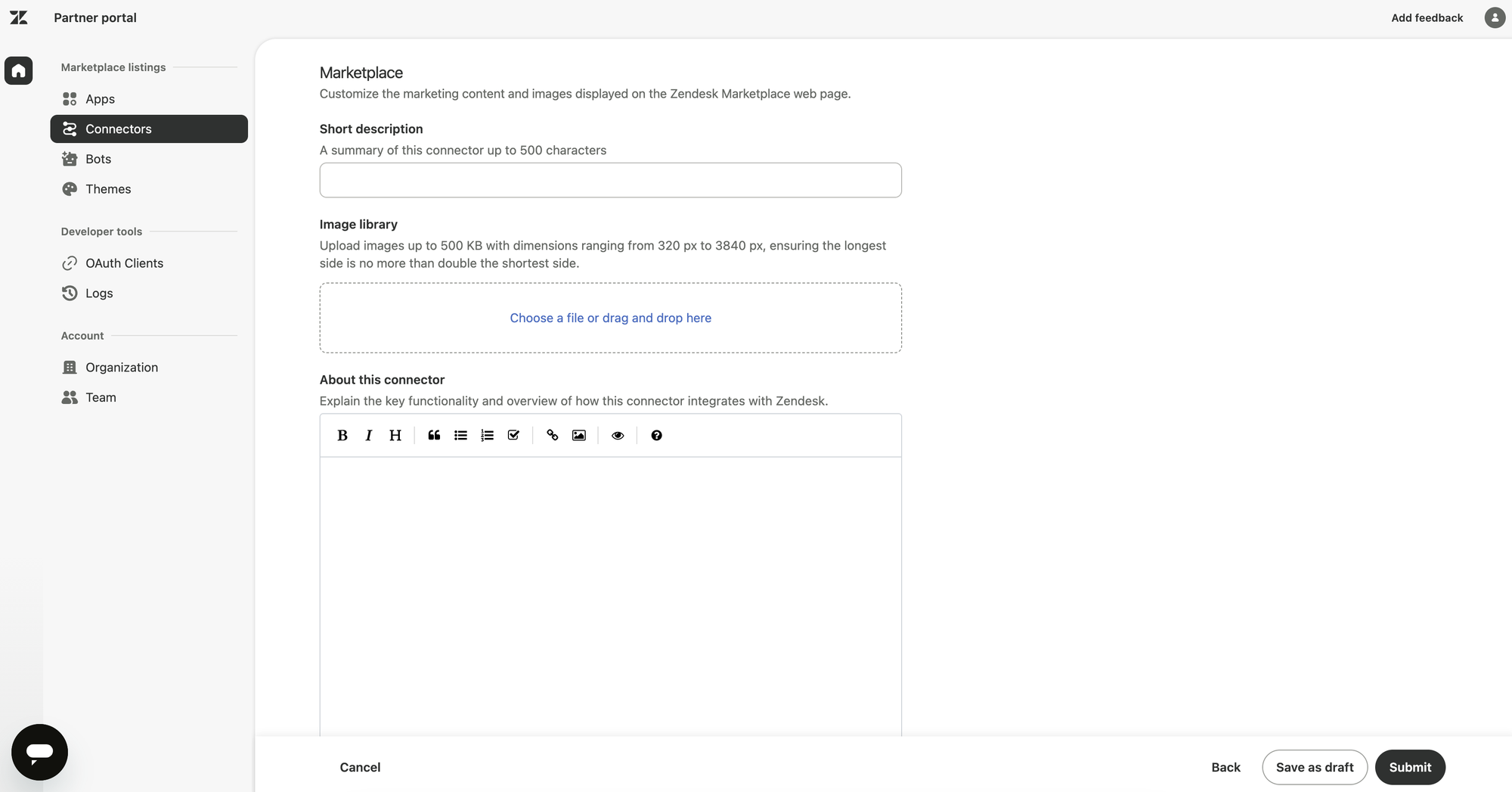
Marketplace details customize the marketing content and images displayed on your connector's Zendesk Marketplace webpage.
- Short description: A summary of your connector, up to 500 characters, including spaces.
- Image library: Between one and three images. The images must meet the following requirements:
- Use PNG, JPG, or JPEG file format
- Be between 320 and 3,840 pixels in width and height
- Be no larger than 500 KB
- Have the longest side no more than twice the shortest side
- About this connector: Explain your connector's key functionality and give an overview of how your connector integrates with Zendesk.
- Example recipes: Optionally, add workflows or use cases that demonstrate how your connector can be used.
- Requirements: List any Zendesk plan requirements, API keys, or third-party prerequisites needed to use your connector. Required for submission.
- How to connect: Provide step-by-step instructions on how users can set up and authenticate your connector. Required for submission.
- Terms and conditions link: The full URL of your terms and conditions. Must start with https://.
Submitting or saving your submission
At the bottom of the Content step:
- Click Save as draft to save your submission without sending it for review.
- Click Submit to send your connector for review.
Note: A connector can have only one active submission at a time (in the Draft, Pending review, or Under review states). After the active submission is approved, rejected, or deleted, you can submit a new one.
Submitting a connector update
To submit an update to a connector you've already submitted:
- Sign in to the Marketplace developer portal and navigate to the Connectors section.
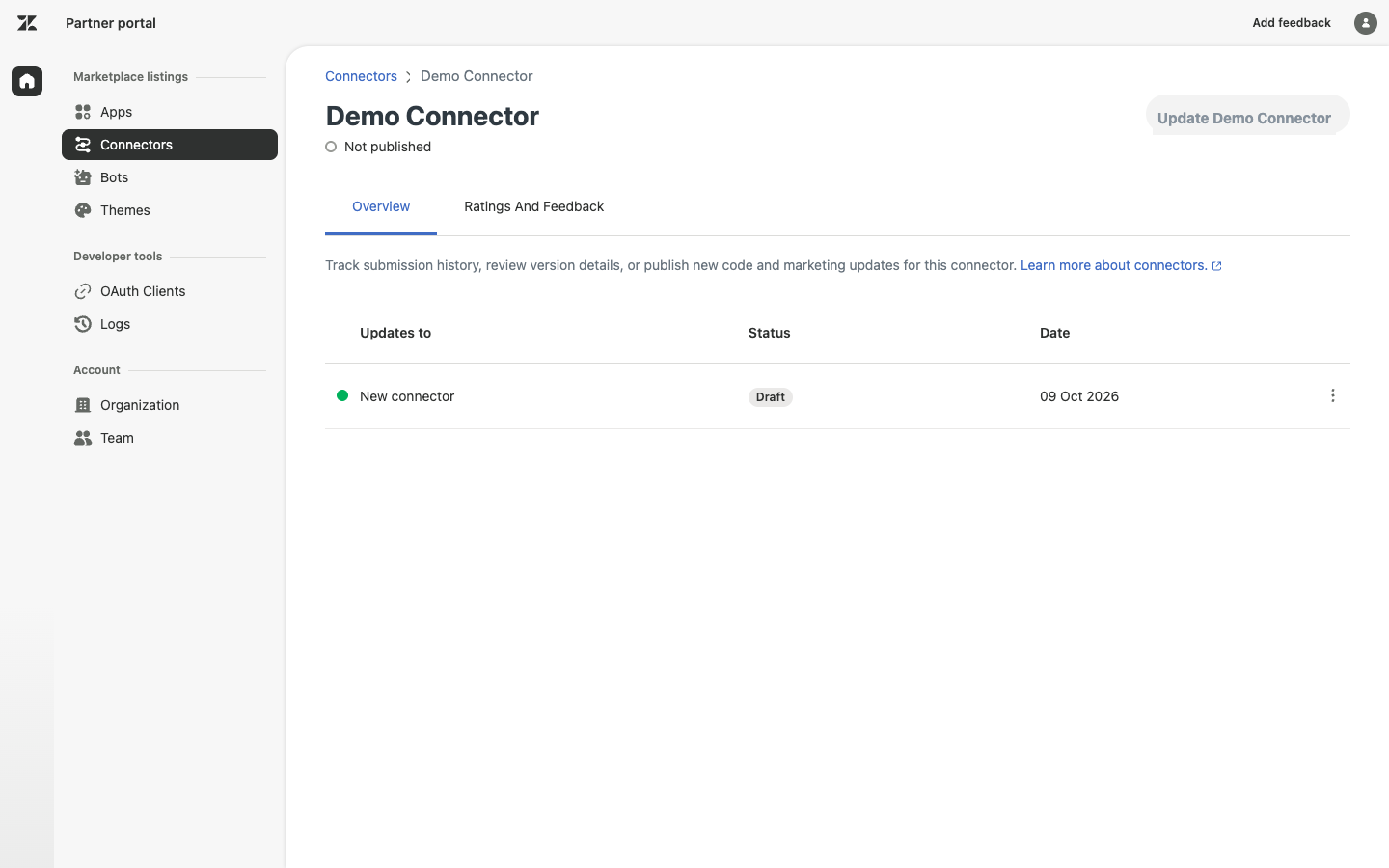
- Select your connector to see its submission history.
- Click Update to submit a new package or updated content. The Update option becomes available after any active submission is approved, rejected, or deleted. You can also edit an active submission while it's in the Draft or Pending review states.
If you're submitting a new package for a connector that has an approved version, the version in your new package must be higher than the last approved one.
Managing your submissions
From the connector's submission history table, you can manage each submission with the actions in the overflow menu, depending on its state:
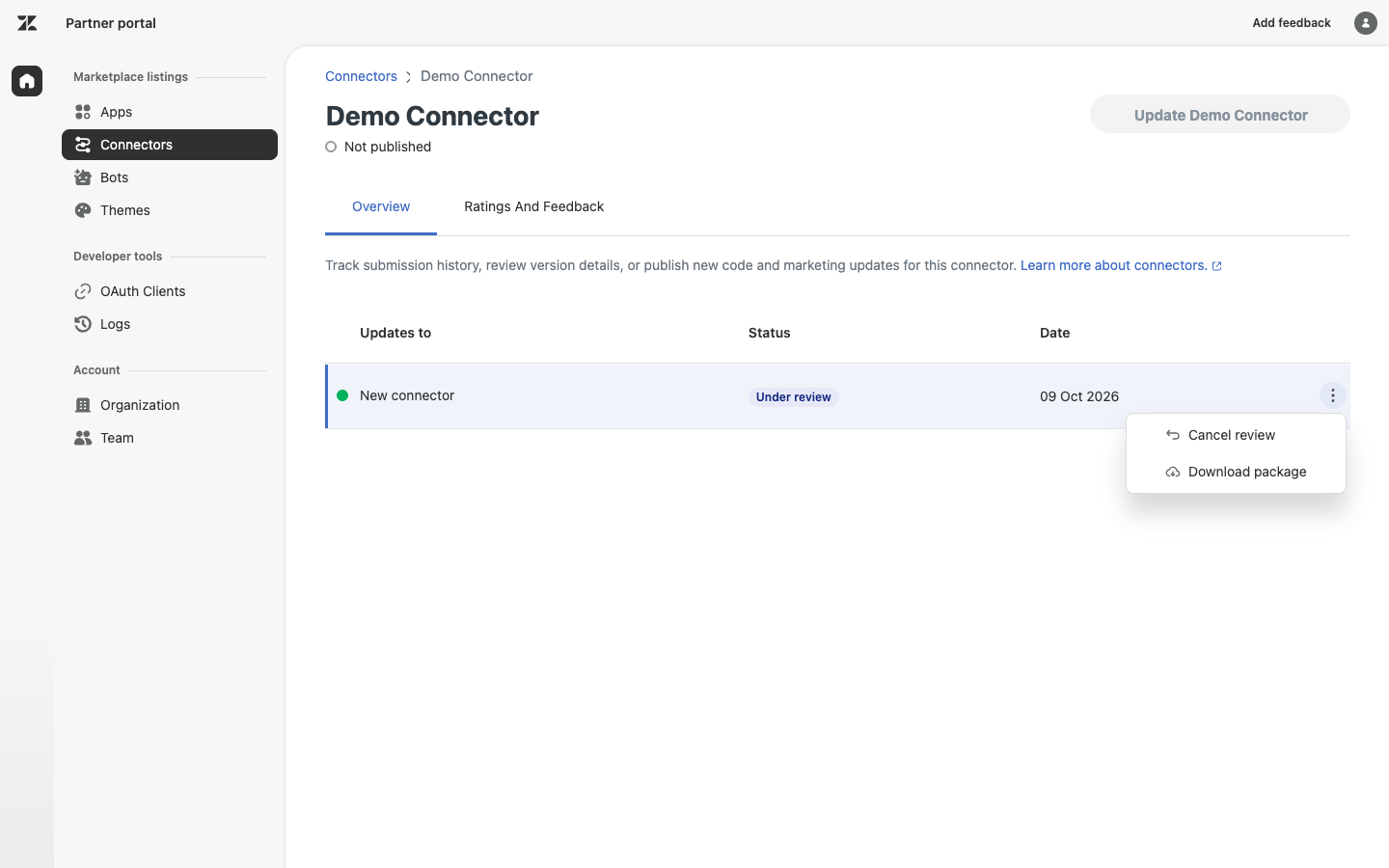
- Edit submission: Click a submission row to edit it while it's in the Draft or Pending review states.
- Download package: Downloads the .zip package you submitted for that submission.
- Revert to draft: Available while a submission is in the Pending review state. The submission goes back to the Draft state so our team knows it is no longer ready for review.
- Cancel review: Available while a submission is in the Under review state. You must provide a reason, and our team processes your request to remove the connector from the review queue.
What happens next?
After you submit your connector, its status is shown in the submission history table on the connector's page in the Marketplace developer portal:
- Draft: The submission isn't sent for review yet.
- Pending review: The submission is ready to be reviewed.
- Under review: Our team is reviewing your submission.
- Approved: Your submission has been approved.
- Rejected: Our team has decided not to accept this submission.
Note: If our team requests changes to your submission, they'll move it back to the Draft state and contact you.
While a submission is under review, Zendesk validates the bundle and, for OAuth connectors, the settings.json contract. Zendesk checks that the connector authentication agrees with settings.json; assesses the connector's actions for suitability in the Action Builder collection; decrypts the client secret inside the provisioning pipeline; and provisions the OAuth resources. settings.json and its ciphertext are excluded from the public runtime release. The Marketplace developer portal never receives the plaintext client secret.
After your connector is live on the Marketplace, you can see its ratings and feedback from users on the connector's page in the developer portal, or view it directly on the Marketplace.
Related documentation
- Building a Marketplace connector - prerequisites, publisher-managed OAuth setup, and packaging the upload archive.
- @zendesk/connector-sdk on npm - SDK quick start and API reference.