Structured messages
In sending messages we explain how to send a basic text message in a conversation. But there is a lot more to messaging than just exchanging text. This guide explains how to use the API to send structured messages to your users. You can use this wide variety of message types to create rich conversational experiences with your customers that combine a variety of media and interactive elements.
For the full reference of supported types and parameters, consult the Post Message API documentation.
Images, stickers and GIFs
In order to send an image using the API, we follow the recipe for sending text messages, but set the type parameter to image and set the mediaUrl field to a URL for the image to be sent to the user:
curl https://{subdomain}.zendesk.com/sc/v2/apps/{app_id}/conversations/{conversation_id}/messages \-X POST \--user '{key_id}:{secret}' \-H 'content-type: application/json' \-d '{"author": {"type": "business"},"content": {"type": "image","mediaUrl": "https://example.org/image.jpg"}}'
To send a sticker, simply have the mediaUrl point to a transparent-background PNG and most messaging clients will format the message accordingly. Animated GIFs work in a similar manner, however, some platforms don't have full support for GIFs and might only display them as still images.
Files
Similar to images, you can also supply a mediaUrl for the user to download a file. See supported file types for messaging attachments in Zendesk help. Use the file type for your message instead of image:
curl https://{subdomain}.zendesk.com/sc/v2/apps/{app_id}/conversations/{conversation_id}/messages \-X POST \--user '{key_id}:{secret}' \-H 'content-type: application/json' \-d '{"author": {"type": "business"},"content": {"type": "file","mediaUrl": "https://example.org/document.pdf"}}'
Action buttons
You can use buttons to guide the user to act on the information in your conversation. Buttons can trigger replies, web links, and more. For messaging channels where buttons are not natively supported, Zendesk has built in fallback behaviours that attempt to communicate the intent of the action in the best way possible. For example, a link button might fallback to a simple hyperlink on channels such as SMS.
Buttons can be sent by including an actions array in your message. Mixing different action types is allowed, however reply actions cannot be mixed with other action types in the same message.
The number of actions allowed in a given message is limited to 10. Some third party channels may have their own lower limits. If the actions array of a message exceeds the number of actions that the channel allows, the list will be truncated to fit the limit, and actions beyond the allowed size will be ignored.
Link buttons
Link buttons allow you to send a call to action that opens a URL when tapped or clicked. You can configure the buttons with any valid URL - use it to send links to web pages or deep-link into apps:
curl https://{subdomain}.zendesk.com/sc/v2/apps/{app_id}/conversations/{conversation_id}/messages \-X POST \--user '{key_id}:{secret}' \-H 'content-type: application/json' \-d '{"author": {"type": "business"},"content": {"type": "text","text": "Please click on this button","actions": [{"type": "link","text": "Button Label","uri": "https://url.button.com"}]}}'
Webview buttons
Webview buttons allow you to send Conversations Extensions to render custom experiences on top of the conversation when the button is tapped, while keeping the user in the same seamless flow. Webview actions use the type webview:
curl https://{subdomain}.zendesk.com/sc/v2/apps/{app_id}/conversations/{conversation_id}/messages \-X POST \--user '{key_id}:{secret}' \-H 'content-type: application/json' \-d '{"author": {"type": "business"},"content": {"type": "text","text": "Pick a date for your delivery.","actions": [{"type": "webview","text": "Pick Date","uri": "https://pick-a-date.com","fallback": "https://pick-a-date-fallback.com"}]}}'
Note: If a user is messaging via the Web Widget in an https page, the webview URI must also be https or it will fail to load.
For more information, see Using conversation extensions.
Reply buttons
Reply buttons (or quick replies) are a great way to walk the user through a specific flow, by suggesting various courses of action. A reply button, once tapped, will insert a reply on behalf of the user. Suggested replies are invaluable when building a bot or automated conversation flow, because they keep your user focused and provide clear instructions on how to proceed.
Each reply button has an associated payload, which should uniquely identify the intent of the action. When the user answers with one of the suggested replies, this payload will be included as part of the resulting message object. To send quick replies, use the reply action type:
curl https://{subdomain}.zendesk.com/sc/v2/apps/{app_id}/conversations/{conversation_id}/messages \-X POST \--user '{key_id}:{secret}' \-H 'content-type: application/json' \-d '{"author": {"type": "business"},"content": {"type": "text","text": "Which do you prefer?","actions": [{"type": "reply","text": "Tacos","iconUrl": "https://example.org/taco.png","payload": "TACOS"},{"type": "reply","text": "Burritos","iconUrl": "https://example.org/burrito.png","payload": "BURRITOS"}]}}'
Postback buttons
Postback buttons are a great way to enhance your conversations by triggering server-side logic when a user clicks on them. When you send the postback button, you can attach a payload which is communicated to your server via the conversation:postback trigger once the button is tapped. This allows you to respond to the press of a button from your backend. The server-side logic can use the payload to run different code based on the context of the conversation.
Postback buttons are similar in function to reply buttons, but with a few key differences:
- Postbacks are multi-use. The button does not disappear after the user taps on it, and therefore it can be clicked many times.
- By default, postbacks do not echo the user’s selection in the conversation history. This can be customized with the
echoPostbackapp setting. - Postbacks use the
conversation:postbackwebhook event to communicate the payload, rather than theconversation:messageevent.
You can use postbacks in combination with other button types using the API:
curl https://{subdomain}.zendesk.com/sc/v2/apps/{app_id}/conversations/{conversation_id}/messages \-X POST \--user '{key_id}:{secret}' \-H 'content-type: application/json' \-d '{"author": {"type": "business"},"content": {"type": "text","text": "Please click one of these buttons","actions": [{"type": "postback","text": "Postback Button Label","payload": "PAYLOAD_HERE"},{"type": "link","text": "Link Button Label","uri": "https://url.button.com"}]}}'
Compound messages
A compound message is a message which can include text, action buttons and an image. This does not have a dedicated message type, but can crafted by supplying any combination of these three elements.
An image message with text and action buttons:
curl https://{subdomain}.zendesk.com/sc/v2/apps/{app_id}/conversations/{conversation_id}/messages \-X POST \--user '{key_id}:{secret}' \-H 'content-type: application/json' \-d '{"author": {"type": "business"},"content": {"type": "image","text": "I strongly recommend our Family Basket, it'\''s perfect for your needs!","actions": [{"type": "postback","text": "Subscribe","payload": "SUBSCRIBE"},{"type": "postback","text": "Learn more","payload": "LEARN_MORE"}],"mediaUrl": "https://media.smooch.io/templates/template-family-basket.jpg"}}'
A text message with action buttons:
curl https://{subdomain}.zendesk.com/sc/v2/apps/{app_id}/conversations/{conversation_id}/messages \-X POST \--user '{key_id}:{secret}' \-H 'content-type: application/json' \-d '{"author": {"type": "business"},"content": {"type": "text","text": "I strongly recommend our Family Basket, it'\''s perfect for your needs!","actions": [{"type": "postback","text": "Subscribe","payload": "SUBSCRIBE"},{"type": "postback","text": "Learn more","payload": "LEARN_MORE"}]}}'
Carousels
Carousel messages are a horizontally scrollable set of up to 10 items, each of which can contain text, an image, and up to 3 message actions. Send a carousel message using the carousel type and an array of items:
curl https://{subdomain}.zendesk.com/sc/v2/apps/{app_id}/conversations/{conversation_id}/messages \-X POST \--user '{key_id}:{secret}' \-H 'content-type: application/json' \-d '{"author": {"type": "business"},"content": {"type": "carousel","items": [{"title": "Tacos","description": "Description","mediaUrl": "https://example.org/image.jpg","actions": [{"text": "Select","type": "postback","payload": "TACOS"},{"text": "More info","type": "link","uri": "https://example.org"}]},{"title": "Ramen","description": "Description","mediaUrl": "https://example.org/image.jpg","actions": [{"text": "Select","type": "postback","payload": "RAMEN"},{"text": "More info","type": "link","uri": "https://example.org"}]}]}}'
Forms
Form messages allow you to capture user data in an ongoing conversation by displaying a form that can contain text, email, integer, and decimal inputs as well as select dropdowns. Use the form message type and specify an array of fields.
curl https://{subdomain}.zendesk.com/sc/v2/apps/{app_id}/conversations/{conversation_id}/messages \-X POST \--user '{key_id}:{secret}' \-H 'content-type: application/json' \-d '{"author": {"type": "business"},"content": {"type": "form","text": "Please fill out this form to help us assist you.","fields": [{"type": "text","name": "name","label": "Name","placeholder": "Enter your name..."},{"type": "email","name": "email","label": "Email","placeholder": "Enter your email..."},{"type": "select","name": "meal","label": "Meal","placeholder": "Choose your meal...","options": [{"name": "taco","label": "Taco"},{"name": "burrito","label": "Burrito"},{"name": "enchiladas","label": "Enchiladas"}]}]}}'
When the user completes the form, a message will be generated with the type formResponse containing the user's answers for each field. For form and form response schema details, see Post Message.
Channel Behavior
Native messaging SDKs
On native messaging channels such as the Web and Mobile SDKs, forms are rendered directly in the conversation so users can complete them inline. These channels display only the form fields, field labels, and the required button label, such as “View form”. If a text property of a form message is set, it isn’t shown on these channels.
Social messaging channels
When a form message is sent to a supported social messaging channel, such as WhatsApp, the message is adapted to the channel’s capabilities. Instead of rendering the form inline in the conversation, users receive a message containing explanatory text along with a secure link to a hosted web form.
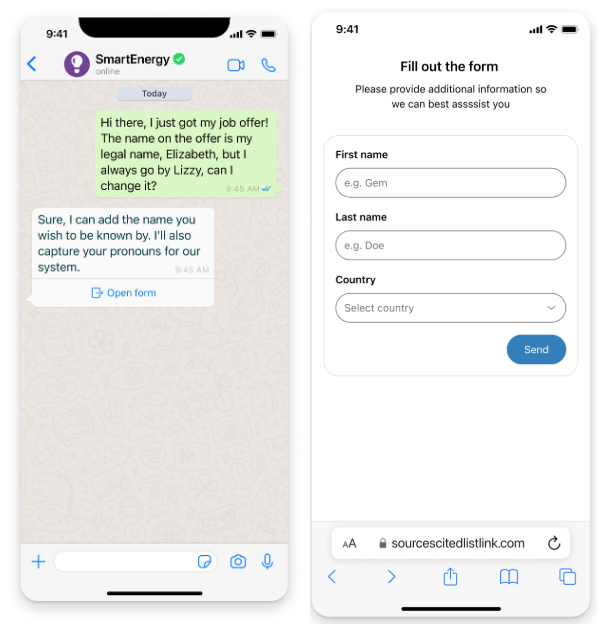
The link opens a browser-based form that is dynamically generated from your original form message fields and is accessible at a unique URL under your Zendesk account's subdomain.
For example:
https://{subdomain}.zendesk.com/sc/form/{messageId}?jwt={jwt}&lang={locale}
{messageId}uniquely identifies the form message.{jwt}is a JSON Web Token (JWT) used to authenticate access to the form.{locale}is the language code for localization.
{messageId}, {jwt}, and {locale} are automatically generated and managed by Zendesk messaging. You do not need to set these values when sending a form message.
The explanatory text shown to users can be customized through an optional field in the form message. If supported by the social channel, link actions or buttons display the form link. Otherwise, a plain URL is sent.
Form submission and responses
For social channels that render form messages as links to an external web form, you can set an optional text property to control the introductory text shown with the form link (for example, “Please complete this form to help us assist you.”). If supported by the social channel, link actions or buttons show the form link. Otherwise, a plain URL link is sent.
Example form message with optional introductory text:
data.content = {type: "form",text: "“Please complete this form to help us assist you",fields: [{type: "text",name: "name",label: "Name",placeholder: "Enter your name..."},
Notes
- Forms are for single use.
- Only valid field values are accepted. Required fields must be non-empty.
- Both client and server-side validation are enforced.
- Hosted forms do not support branding or custom styling.
- There is no user interface for configuring forms, and admins do not need to set up forms manually. However, forms can be included in AI agent flows, which will send a form message automatically.
Rich text
Rich text messages allow you to send messages with text formatting such as bold, italic, underline, strikethrough, and code. You can also include links in your messages, or even format them using a subset of HTML.
To send a message with rich text using Post Message, set the property type to one of the following: text, image or file. You must specify either htmlText or markdownText but not both. If both htmlText and markdownText are provided, the message will be rejected.
When markdownText is specified, the provided markdown will be automatically converted to HTML and stored in the htmlText field. In other words, markdownText can be sent to the platform in order to generate HTML, but it cannot be read back in its original form afterwards.
The htmlText field is subject to a 4096-character limit. If htmlText exceeds this limit, or if the markdownText is converted to an htmlText that exceeds this limit, the message will be rejected.
curl https://{subdomain}.zendesk.com/sc/v2/apps/{app_id}/conversations/{conversation_id}/messages \-X POST \--user '{key_id}:{secret}' \-H 'content-type: application/json' \-d '{"author": {"type": "business"},"content": {"type": "text","htmlText": "<b>This is bold</b> <i>This is italic</i> <u>This is underline</u> <s>This is strikethrough</s> <code>This is code</code> <a href=\"https://example.com\">This is a link</a>"}}'
Supported tags / attributes
When sending rich text, only a subset of markdown / HTML tags and attributes are supported. Unsupported tags will be stripped from the message content. The following table lists the supported tags and attributes:
| Tag | Attributes |
|---|---|
<b> | |
<br> | |
<p> | |
<span> | |
<strong> | |
<b> | |
<em> | |
<i> | |
<u> | |
<ins> | |
<s> | |
<del> | |
<a> | href, target |
<ol> | |
<ul> | |
<li> | |
<h1> | |
<h2> | |
<h3> | |
<h4> | |
<h5> | |
<h6> | |
<code> | |
<q> |
Next steps
- Learn how to quickly craft structured messages using our messaging shorthand syntax.
- Template messages can be used to store reusable structured message payloads which can be sent to multiple users.
- Leverage message overrides to send channel-specific message types that don't correspond to any of the officially supported structured messages.