Managing global OAuth clients and app associations
Managing global OAuth clients and app association
You can register a global OAuth client for your organization using the Marketplace developer portal. By registering, also known as claiming, your global OAuth client, you can associate it with one or more app listings.
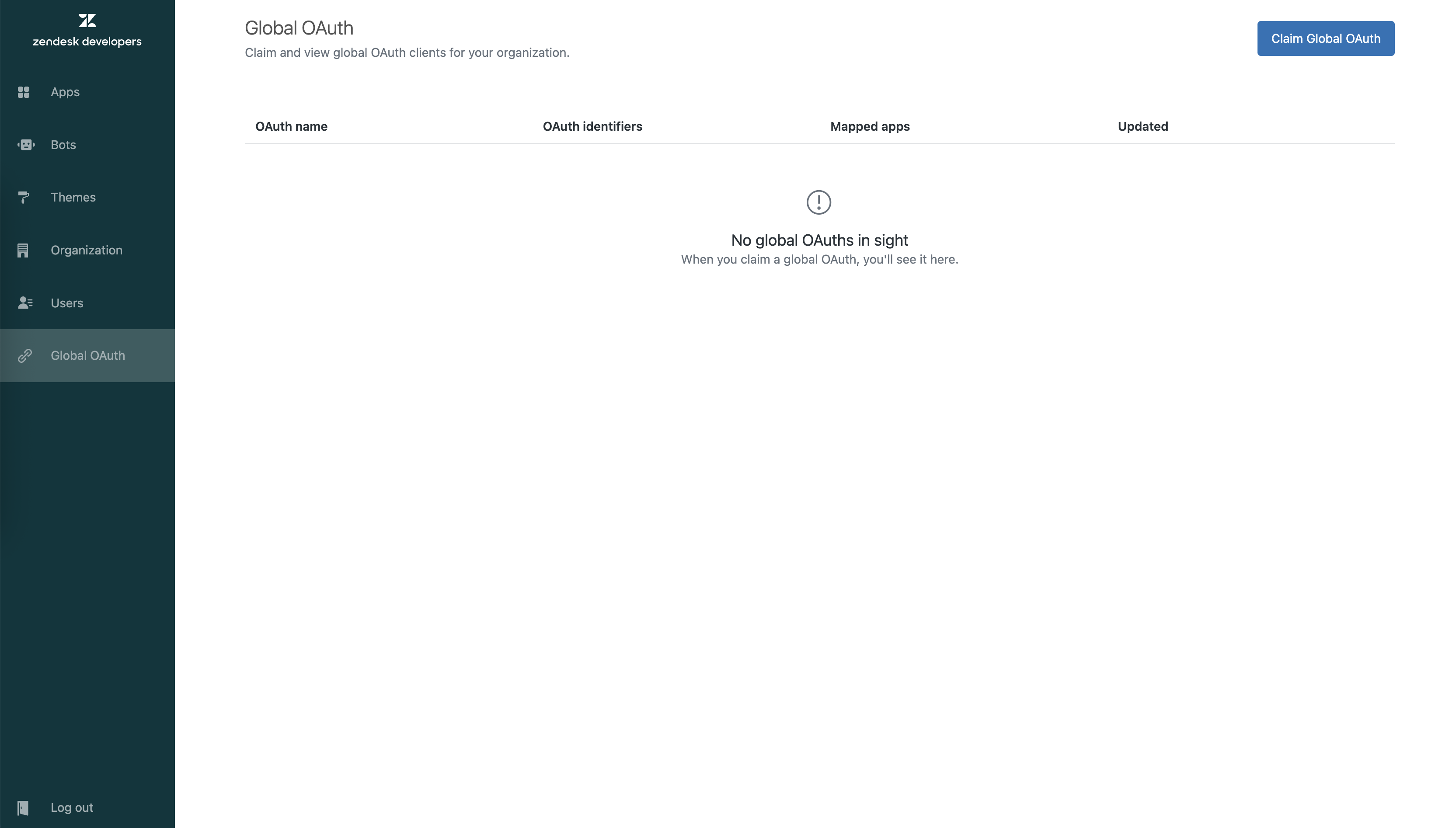
To get started, sign in to the Marketplace developer portal and navigate to the Global OAuth section.
Claiming a global OAuth client
To register a global OAuth client for your organization:
-
Click Claim Global Auth at the top right of the page.
-
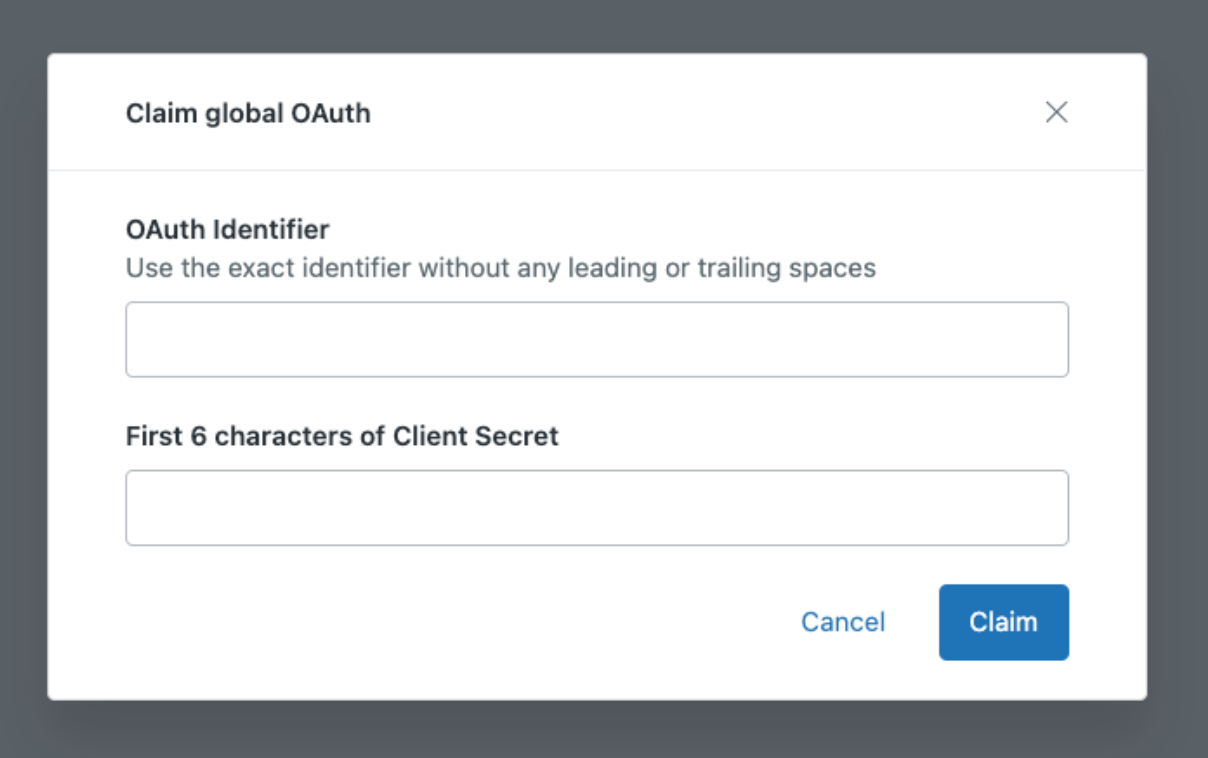
Enter:
- OAuth identifier: The
client_idfor your global OAuth client. - First 6 characters of clients secret: The first 6 characters of the client secret provided when you created the client.
- OAuth identifier: The
-
Click Claim.
Once claimed, the client appears in your list of global Oauth clients. Repeat this process to claim all clients your organization manages.
Asociating global OAuth clients with apps
After claiming your global OAuth client, link them to your app listings:
-
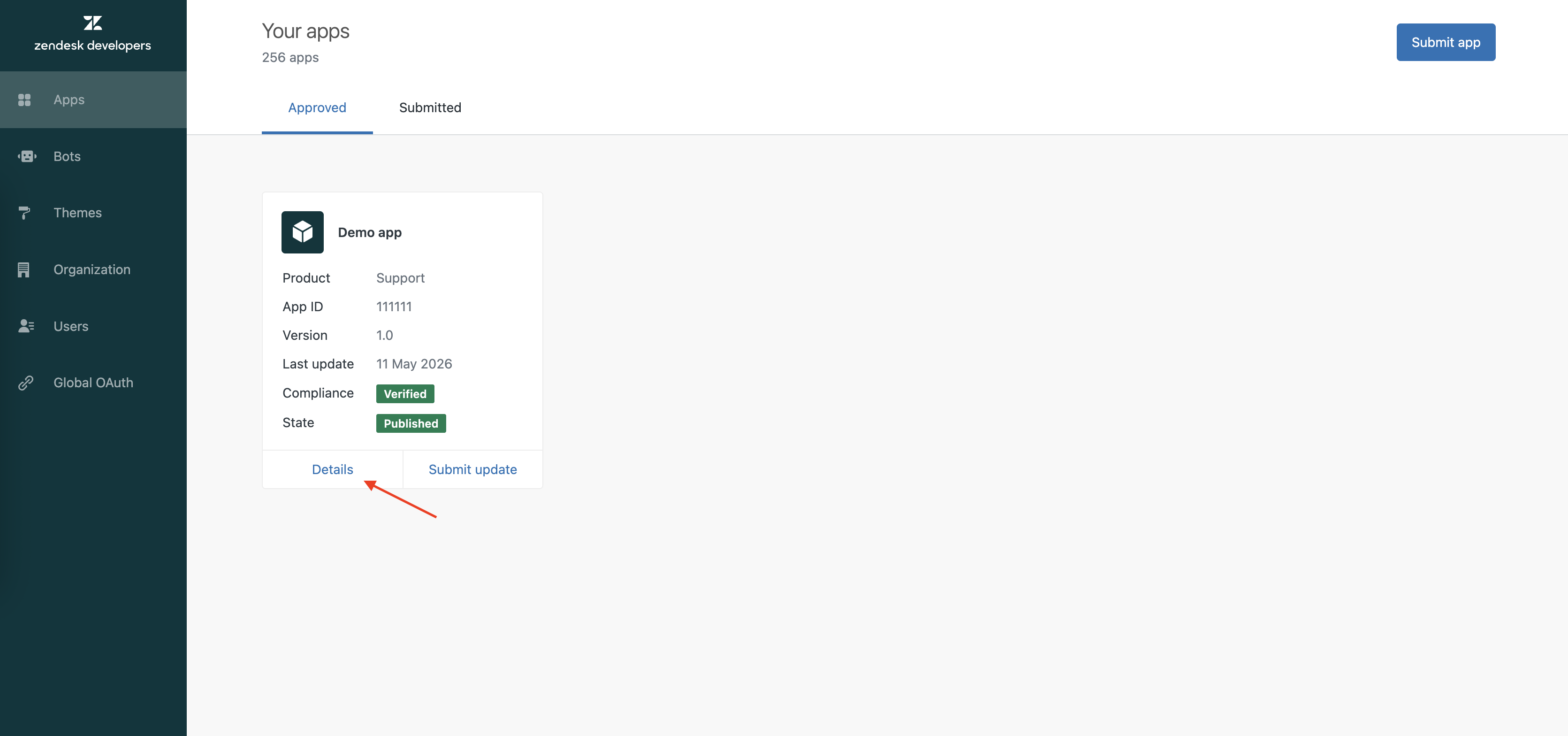
Navigate to the Apps section.
-
Select Details on the app tile you wish to update.
-
On the app details page, click the Compliance tab.
-
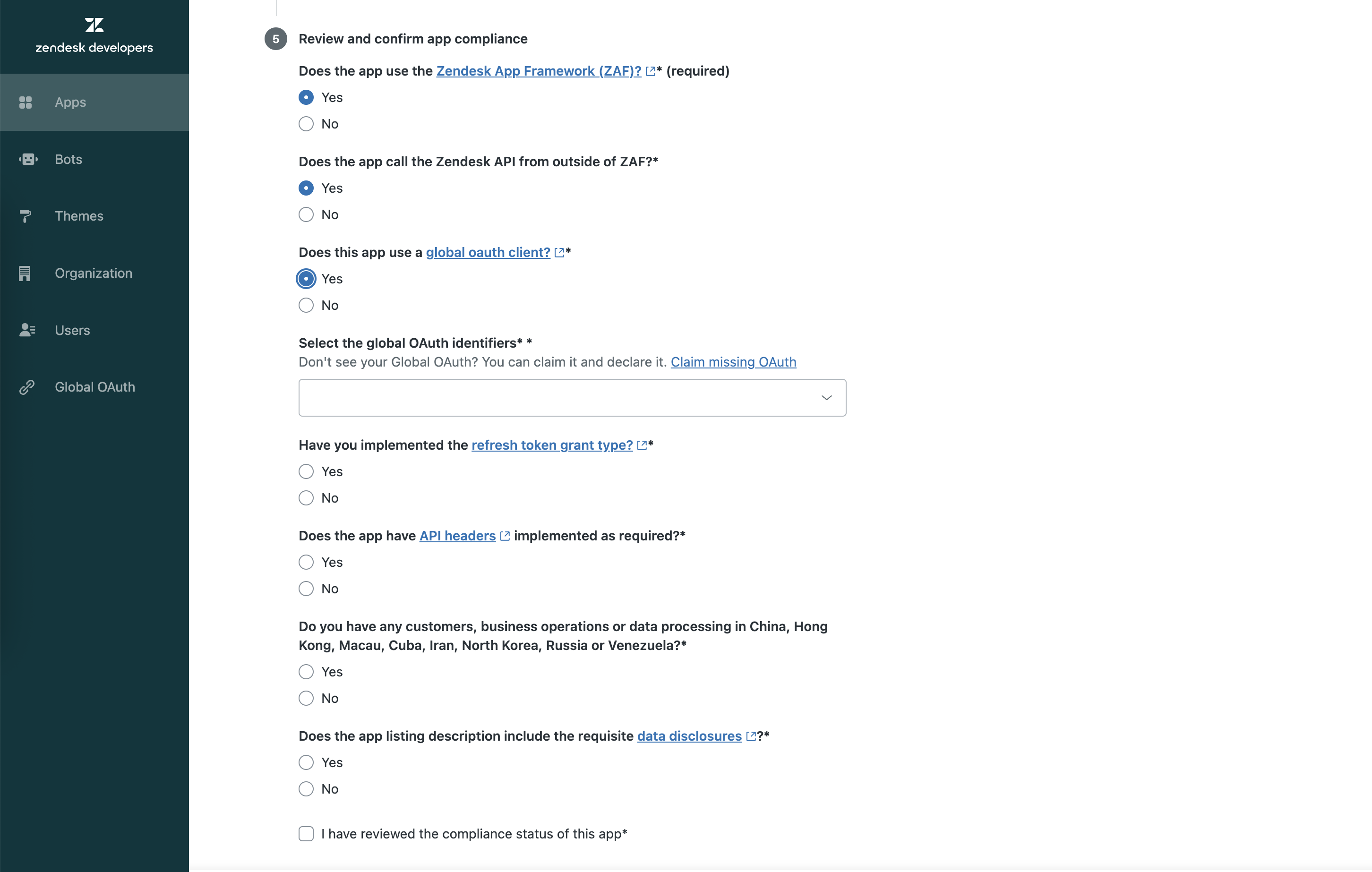
You must answer these questions as accurately as possible to help ensure Zendesk’s compliance requirements are met. If your app calls the Zendesk API from outside of ZAF, select Yes for Does the app call the Zendesk API from outside of ZAF? This will reveal the additional related compliance questions.
-
If your app uses global OAuth, answer Yes to the question: Does this app use a global OAuth client?
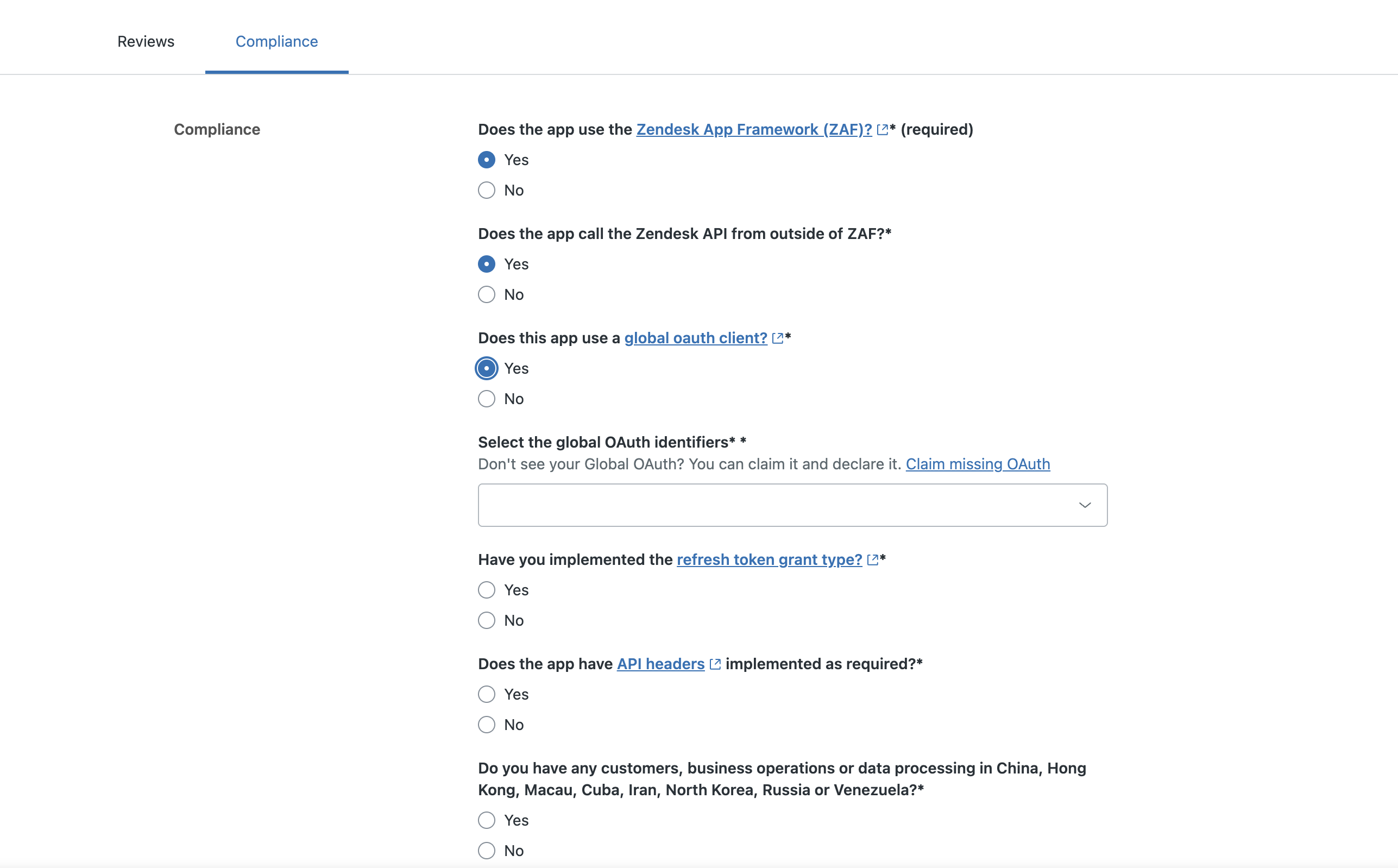
- Select the global OAuth client identifiers used by the app. You may select more than one.
NOTE: If you do not see your client in the list, make sure you have completed the claiming process above.
- Select the global OAuth client identifiers used by the app. You may select more than one.
-
If your app does not use global OAuth, answer No to the question: Does this app use a global OAuth client?
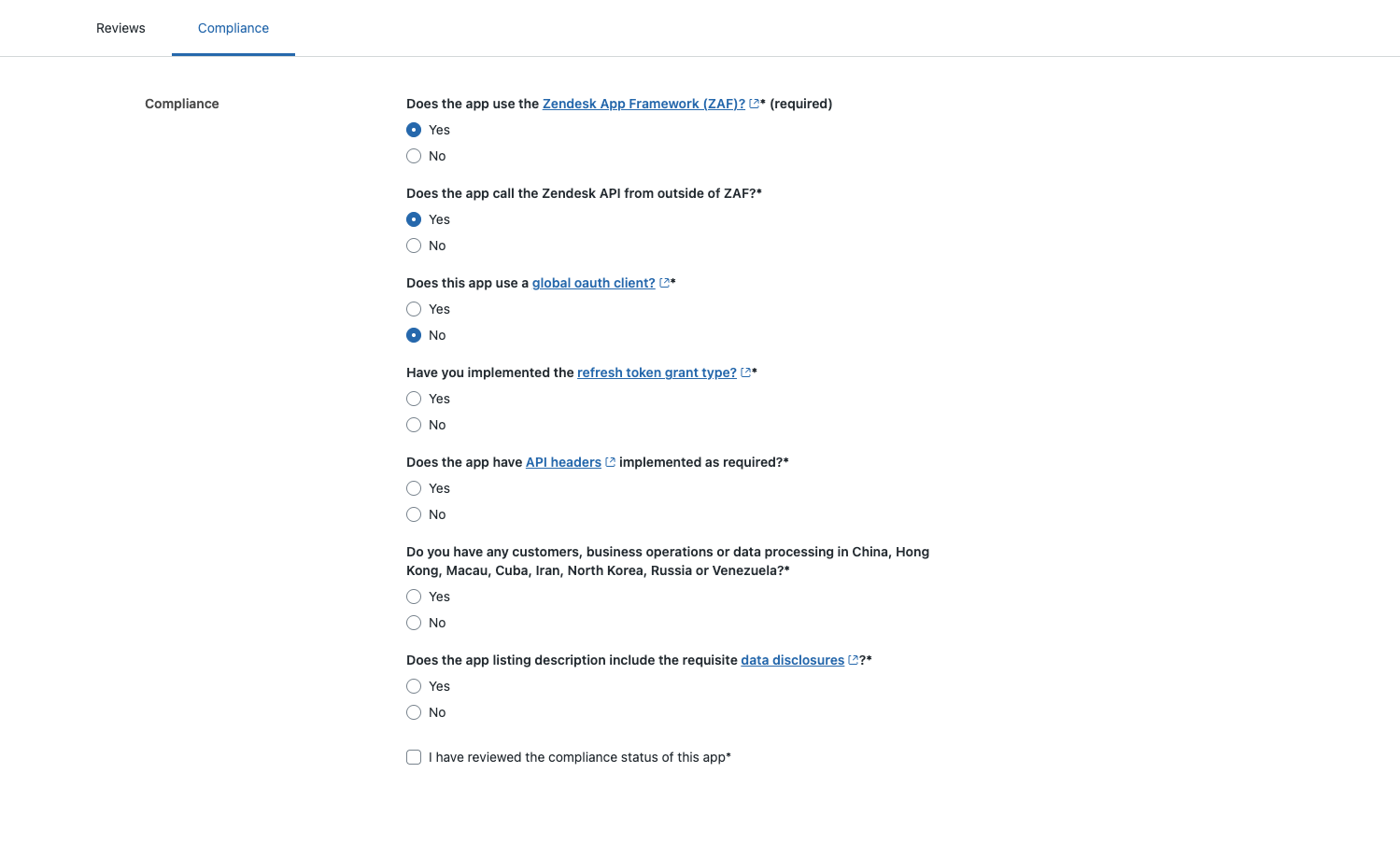
-
-
Click Update to save the changes.
Repeat these steps for any additional apps that use a global OAuth client.
You can also request global OAuth when submitting a new app or updating an existing one.
-
If you select Yes for Global OAuth Client, you must choose an already claimed Global OAuth Client.
-
If you select No while updating the app, the existing Global OAuth mapping for the app is removed.